Addon features
GRT: Armature Tools
Mute/Unmute Rig Constraints: mute/unmute constraints in the selected armature with one click. Works in Object mode and Pose Mode.

Mute: mute constraints in the selected armature
Unmute: unmute constraints in the selected armature
Selection toggle: when this setting is turned OFF (default), mute and unmute are applied on all bones in the rig.
When it is ON, mute and unmute are applied only on selected bones.
Generate Game Rig: extracts a simple Deform rig from a selected Control rig.

Name: Sets the name of the extracted Deform Rig
Flat Hierarchy:
Enabled - unparents all bones of the extracted armature from each other. Disabled - the hierarchy of the extracted bones remains the same as in the original Control Rig
Disconnect Bones:
Enabled - disables the “Connected” option for all bones in the extracted armature. Disabled - the “Connected” option of the extracted bones remains the same as in the original Control Rig.
Constraint Type: sets the constraint(s9 that will be used to constrain the Game Rig to the Control Rig.
Copy Location & Copy Rotation: each bone of the Game Rig is constrained to a corresponding bone of the Control Rig using Copy Location and Copy Rotation constraints. (This is the default setting)
Copy Transforms: each bone of the Game Rig is constrained to a corresponding bone of the Control Rig using a Copy Transforms constraint.
None(Do not Constrain): only extracts a Deform Rig without constraining it to the Control Rig.
Extract Mode: defines which bones will be extracted from the Control Rig.
Selected bones: Extract only the bones selected in Edit Mode or Pose Mode.
Deform bones: Extract all bones that have the Deform option (under Bone Properties) checked. (This is the default setting)
Selected Deform bones: Extract bones that have the Deform option checked (under Bone Properties) but only if they are also selected.
Deform bones + Selected bones: Extract all bones that have the Deform option checked (under Bone Properties). In addition, it also extracts all selected bones.
Bind to Deform rig: If enabled, it changes the Object of the Armature modifier to be the extracted Game rig.

Parent Mesh Object(s) to Deform Rig: If enabled, reparents all character meshes to be children of the extracted Game rig (rather than of the Control Rig)
Advanced (click to expand the advanced options)

Control Rig
Remove BBone: removes Bendy Bones from the Control Rig. This is not strictly necessary but since game engines can’t use Bendy Bones it is a good practice to disable them in your whole project (exceptions may apply).
Game Rig
Remove BBone: removes Bendy Bones from the game rig. Recommended for export outside of Blender.
Move bones to layer 1:
Enabled: All extracted bones will be moved to layer 1 of the Game Rig. Disabled: the extracted bones will stay on the layers they occupied in the Control Rig.
Set Inherit Rotation: True: Enables the Inherit Rotations setting (under Bone Properties > Relations) for all bones of the Game Rig.
Set Inherit Scale: Full: Sets the Inherit Scale setting (under Bone Properties > Relations) to “Full” for all bones of the Game Rig.
Set Local Location: True: Enables the Local Location setting (under Bone Properties > Relations) for all bones of the Game Rig.
Remove Non-Deform / Non-Selected Bones: Removes all bones except the ones that you want to extract.
Unlock Transforms: Unlocks the Transforms (under Bone Properties > Transforms) for all bones of the Game Rig. Some Control Rigs (e.g. Rigify) lock certain Transforms to prevent accidental use. But you probably want to unlock them in the Game Rig.
Remove Bone Shapes: Removes Custom bone shapes from all bones.
Remove Old Constraints: Removes any constraints that may have existed on the extracted bones.
Remove Animation Data & Drivers: Removes any Drivers and other animation data that may exist on the extracted bones.
Remove Custom Properties: Removes any Custom Properties that may exist on the extracted bones.
Utility Tools
Utility Tools features:

- Constrain Armatures (name based): constrains the bones of two armatures based on identical bone names
TODO
- Batch Rename Actions:
TODO
Flatten Hierarchy: Unparents all bones in all selected armatures from each other. Similar to Alt+P > Clear Parent
Disconnect All Bones: Disconnects all parented bones. This operation does not affect the bone hierarchy. Similar to Alt+P > Disconnect Bone
Apply Armature Scale: Applies the Scale of the selected Armature while preserving its Actions. (Simply using CTRL+A > Scale may cause the rig action to become distorted.)

-Include actions: -All in NLA: all Actions in the NLA will be tweaked to work with the rescaled Armature -Only active: only the active action will be tweaked to work with the rescaled Armature -Scale only armatures:
Enabled: only applies the scale of selected Armature objects. Other object types (such as Meshes, Curves etc.) will be ignored. Disabled: applies the scale of all selected objects, regardless of type.
Clean-Up Tools
Clean-up Tools features:
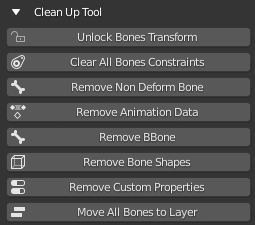
Unlock Bones Transforms: Unlocks the transforms (under Bone Properties > Transforms) for all bones of the selected armature. The additional options allow you to unlock Transforms by type: Location, Rotation, Scale.
IMAGE
Clear All Bone Constraints: Removes all bone constraints from the selected armature.
Remove Non-Deform Bones: Deletes all bones that are not marked as Deform bones.
Remove Animation Data: Removes all animation data (active action, Drivers, NLA strips) from selected objects.
Remove BBone: sets the Bendy Bone Segments to 1 for all bones. This effectively removes Bendy Bones from the rig.
Remove Bone Shapes: Removes Custom bone shapes from all bones.
Remove Custom Properties: Removes any Custom Properties that may exist on the extracted bones. The additional options allow you to remove Custom Properties on different levels: Data, Object, Pose Bone, Edit Bone.

Move All Bones to Layer: Moves all bones of the selected armature objects to a selected bone layer. Selecting multiple bone layers is possible.
Armature Display
Shows some of the settings that you find under Object Data Properties (aka Armature tab) > Viewport Display. For convenience only.

GRT: Action Bakery

Action List Area

Action List: Shows a list of actions from the Blender scene. Not all scene actions need to be added to the list. Only select the ones that you want to bake. The checkbox next to each action determines whether the action will be baked when you press the Bake Action Bakery button.
+ / - buttons: add / remove an action slot from the Action List.
Additional options *(click the triangle icon)*
-Load Action by Name: Adds all actions which contain a certain string to the Action List (case sensitive). -Load All Actions: Adds all actions from the entire Blender scene to the Action List. -Load from NLA: Adds all actions that are used in the NLA for the selected object to the Action List. -Batch rename actions: Allows you to Batch rename the Actions in your Blender scene

-Action Limiter(???) *(dropdown)*: determines which actions from the Blender scene will be affected by the renaming process. -Selected Action in Action Bakery: actions in the Action List which have the checkbox checked will be subject to renaming. -Action Bakery: all actions in the Action List will be subject to renaming. -All: all actions in the entire Blender scene will be subject to renaming. - Replace/Prefix/Suffix mode: determines the way that actions will be renamed. -Replace mode: finds a string in all renamed actions -Prefix mode: adds a prefix to all renamed actions -Suffix mode: adds a suffix to all renamed actions
Up / Down arrow: moves the selected Action slop up or down in the Action List.
Load actions in the Action List *(buttons)*:
-Active: Adds the active action of the selected object to the list to the Action List. -From NLA: Adds all actions that are used in the NLA for the selected object to the Action List. -Load All: Adds all actions from the entire Blender scene to the Action List. -Clear All: Removes all actions from the Action List.